Administrator Profile Setup
Administrator profiles are created by selecting Clevel codes along with the wildcard % to allocate groups to be included or excluded, for example:
A user may be allocated access as follows:
COMADM% - Include
COMADMFIN% - Exclude
The user would in this case have access to all Clevels commencing COMADM with the exception of any Clevels in the financial division that commence COMADMFIN.
Team leader administration access allocated as %ADM% would provide access to all employees in Clevels where ADM appears in the Clevel code.
A Clevel profile may contain any number of individual Clevel selections, however great care should be taken when assigning profiles to ensure that security of staff records is not compromised.
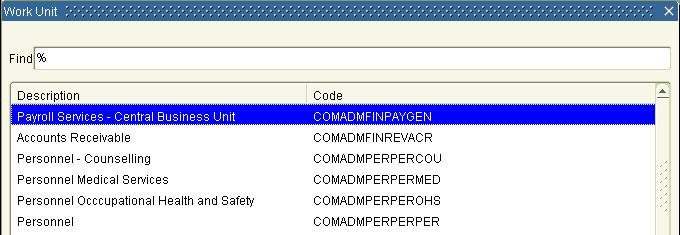
Double clicking or using the list icon within the Clevel Restriction area will provide a lookup of all Clevel codes as follows:
When the Clevel access has been entered, the Start Date field is mandatory however the End Date field is optional. Validation ensures access is on or after the start date selected. Once saved, clicking on the Preview tab will display a list of all of the Clevel groupings that the employee will have access to. This is useful to check that the assigned profile is correct. If the Clevels displayed are incorrect, the profile may be changed and re-previewed until it meets the requirements.
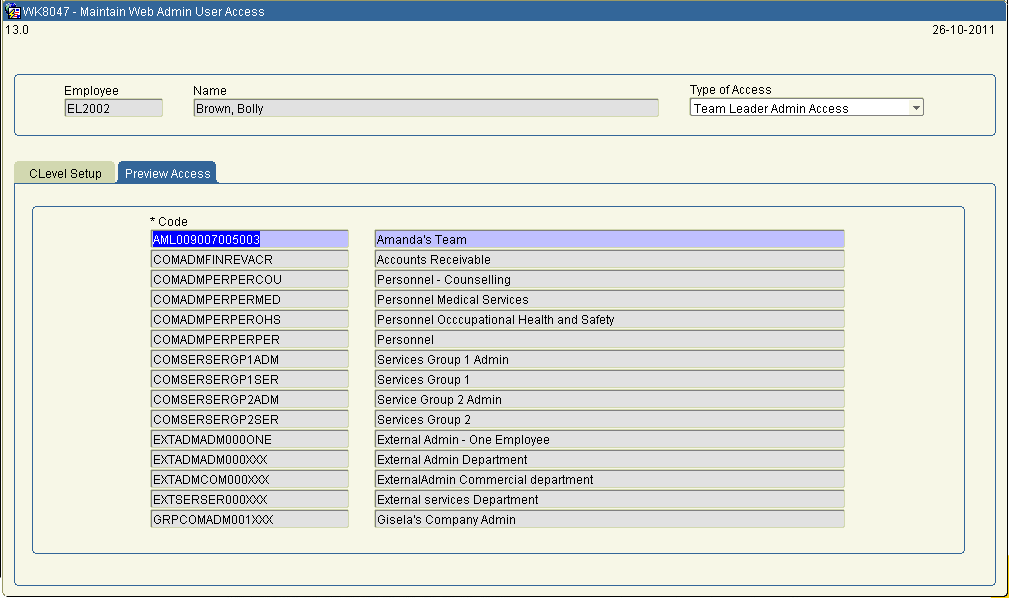
If a Web Self Service user has been assigned Clevel access, via WK8047 - Maintain Web Admin Users, their team list will be populated according to their assigned Clevel profile. They will not have the facility to drill down through the reporting hierarchy, as the ‘Position Reports To’ data is not relevant.
The team list in view functionality remains unchanged and the user will be able to select a specific employee to place in view for individual enquiries.